Understanding Your Windows Webcam Access Log: Privacy Tips and Risks
Webcam privacy is a top concern for many users, especially with the rise of stealthy malware that can secretly activate your camera. Windows actually keeps a history of which apps have accessed your webcam, giving you a powerful tool to spot unauthorized use. This article answers common questions about webcam access logs, how to check them, and what to do if you find suspicious activity. Follow the links below to jump to each topic:
- What is the Windows webcam history feature?
- How can I check which apps have accessed my webcam?
- Why should I be concerned about unauthorized webcam access?
- How does malware silently activate a webcam?
- What steps can I take to protect my webcam from spyware?
- Can I disable the webcam entirely for extra security?
- How often should I review my webcam access history?
What is the Windows webcam history feature?
Windows 10 and later versions maintain a built-in log of when apps access your webcam. This feature is part of the Privacy settings section. Every time an application—whether legitimate like Skype or malicious spyware—turns on your camera, Windows records the event. It shows you the app name, the time, and sometimes the duration. The log is stored locally and can be viewed in the Settings app under Privacy > Camera. It is designed to give you transparency and control over your camera. Keep in mind that this history only tracks operations that go through the standard Windows camera API. Extremely sophisticated malware that bypasses the operating system may not appear in this log. Still, for most common spyware, the webcam history is a reliable first line of defense.
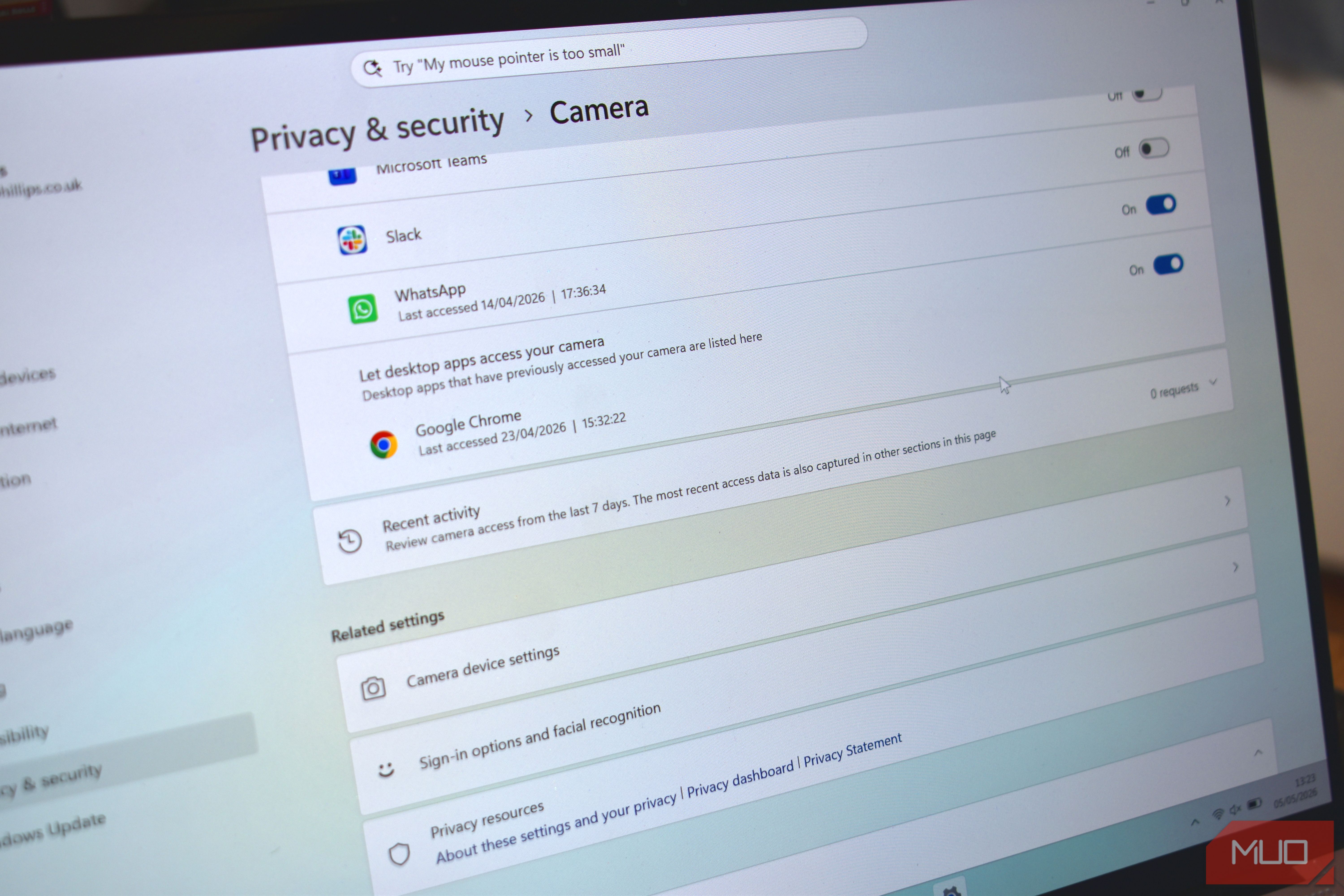
How can I check which apps have accessed my webcam?
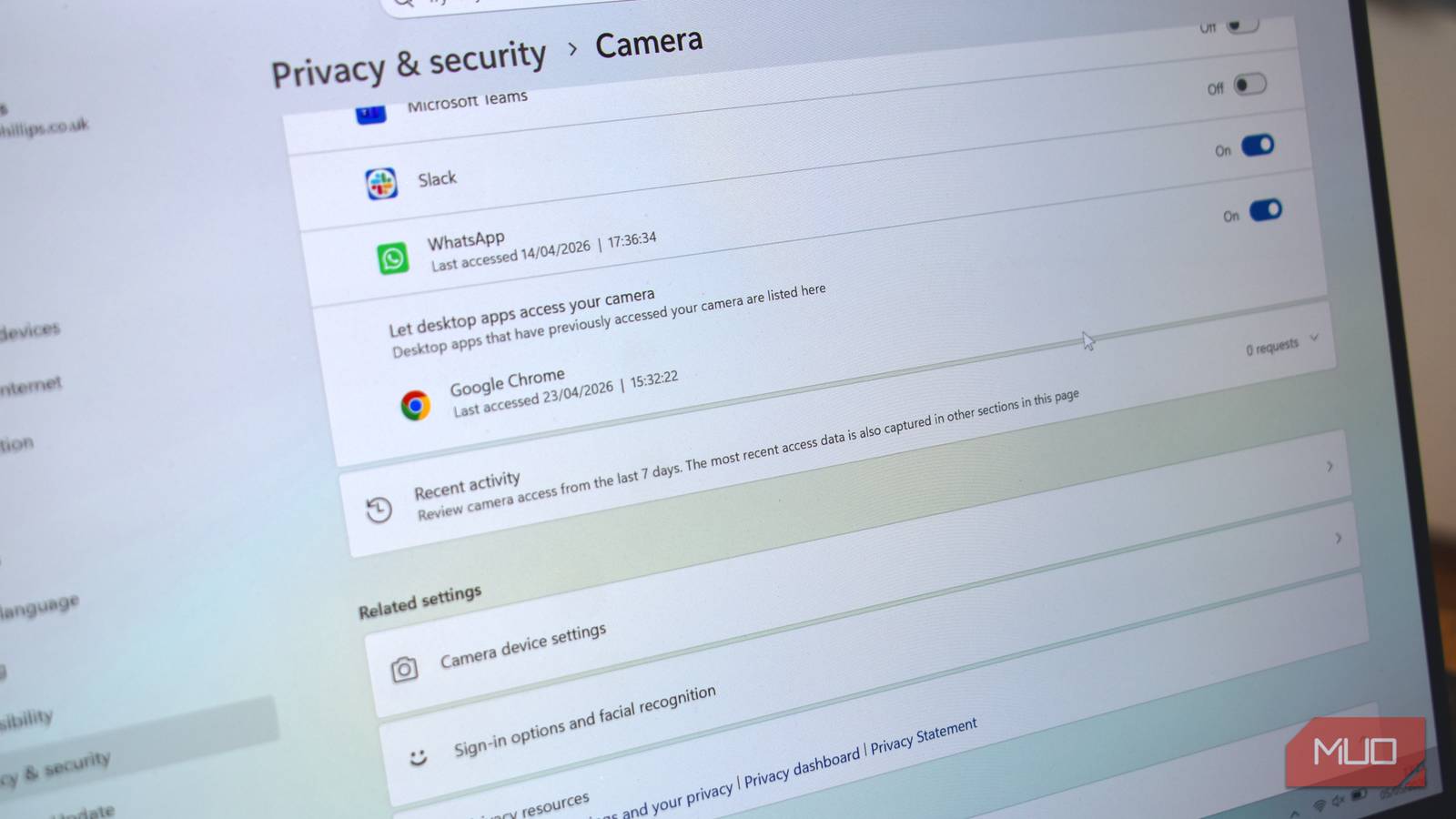
To view your webcam access history, open Settings from the Start menu, go to Privacy & security, then select Camera from the left sidebar. Under the section “Let apps access your camera,” you will see a list of apps that have requested camera permission. Click Recent activity or look for a link that says “See what apps have accessed your camera.” On some versions, the history is displayed directly beneath the toggle. You can sort by date and app. If you see an app you don't recognize, consider revoking its permission by switching the toggle off. Note that the history only goes back a limited time (usually a few weeks) and is cleared when you reset the privacy settings. Checking this log regularly can help you catch unauthorized access early.
Why should I be concerned about unauthorized webcam access?
Unauthorized webcam access is a serious privacy invasion. When someone activates your camera without your knowledge, they can see you in private moments—whether you're working, sleeping, or spending time with family. This is especially worrying if your laptop is in a bedroom or near children. The psychological impact can be enormous: the feeling of being watched erodes trust in your devices. Moreover, captured footage can be used for blackmail, extortion, or sold on the dark web. Many malware strains, such as remote access Trojans (RATs), specifically target webcams. The simple act of covering your lens isn't enough if the malware records audio or takes screenshots. Being proactive about monitoring your webcam history is one way to regain a sense of control over your digital life.
How does malware silently activate a webcam?
Malware can activate your webcam without any visible indicator, often by using the same system APIs that legitimate apps use. Common methods include:
- Remote Access Trojans (RATs): These give attackers full control over your computer, including turning on the webcam.
- Browser exploits: Malicious websites can use Flash or JavaScript to access the camera if permissions are misconfigured.
- Keyloggers and spyware: Some spyware quietly records video or takes snapshots while you type.
To stay stealthy, malware may disable the traditional webcam LED indicator, though newer hardware makes this harder. Some advanced threats avoid the standard camera API and talk directly to the hardware, bypassing Windows logs altogether. That's why physical covers are still recommended. However, the webcam history log remains a valuable tool for catching many types of unauthorized access.
What steps can I take to protect my webcam from spyware?
Protecting your webcam involves both software and hardware measures:
- Review app permissions: Go to Settings > Privacy & security > Camera and revoke permissions for any app that doesn't need camera access.
- Check webcam history: Regularly review recent activity for suspicious apps.
- Use antivirus and anti-malware tools: Keep your security software updated to detect and remove spyware.
- Keep your OS and apps updated: Patch vulnerabilities that malware could exploit.
- Disable the camera when not in use: In Device Manager, right-click the camera and select Disable device.
- Cover the lens: Use a slide cover or a piece of tape as a physical barrier.
- Be cautious with downloads: Only install software from trusted sources and avoid clicking suspicious links.
Combining these methods creates multiple layers of defense against unauthorized access.
Can I disable the webcam entirely for extra security?
Yes, you can disable the webcam at the system level to block all access. Open Device Manager by right-clicking the Start button, expand Imaging devices or Cameras, right-click your webcam, and choose Disable device. This prevents any software—including the operating system—from using the camera. However, it also stops legitimate uses like video calls or scanning QR codes. If you rarely use your camera, this is a highly effective security measure. Alternatively, you can uninstall the driver, but Windows may reinstall it on reboot. A physical cover is a flexible alternative because you can remove it when needed. Remember that disabling the webcam does not affect the microphone, so you may still need separate privacy measures for audio.
How often should I review my webcam access history?
It's a good practice to check your webcam access history at least once a week, especially if you frequently install new software or visit various websites. Many spyware operations occur irregularly, so weekly reviews increase the chance of catching anomalies. If you use your laptop in sensitive environments (like a home office with confidential documents or children's play areas), consider daily checks. Set a reminder to open Settings > Privacy & security > Camera and look at the recent activity list. If you notice an app you didn't authorize, immediately revoke its permission and run a full antivirus scan. The history only retains data for a limited period, so don't delay too long. Integrating this check into your routine (e.g., Monday morning coffee) can help it become a habit without being burdensome.
Related Articles
- Anthropic Withholds Revolutionary AI After It Learns to Hack Critical Systems
- Why Session Timeouts Create Hidden Accessibility Hurdles for Web Users
- Achieving Container Security Precision: A Step-by-Step Guide to Docker and Black Duck Integration
- Latest Linux Stable Kernels Address Critical AEAD Socket Vulnerability
- Ubuntu 16.04 Xenial Xerus: Urgent Upgrade Guide After End of Life
- GitHub Patches Critical Remote Code Execution Vulnerability in Git Push Pipeline – No Exploitation Detected
- Framework Unveils Wireless TouchPad Keyboard Aimed at Living Room Computing
- How a DDoS Protection Provider Was Weaponized Against Its Own Clients