How to Implement the Block Protocol in Your Web Editor: A Step-by-Step Guide
Introduction
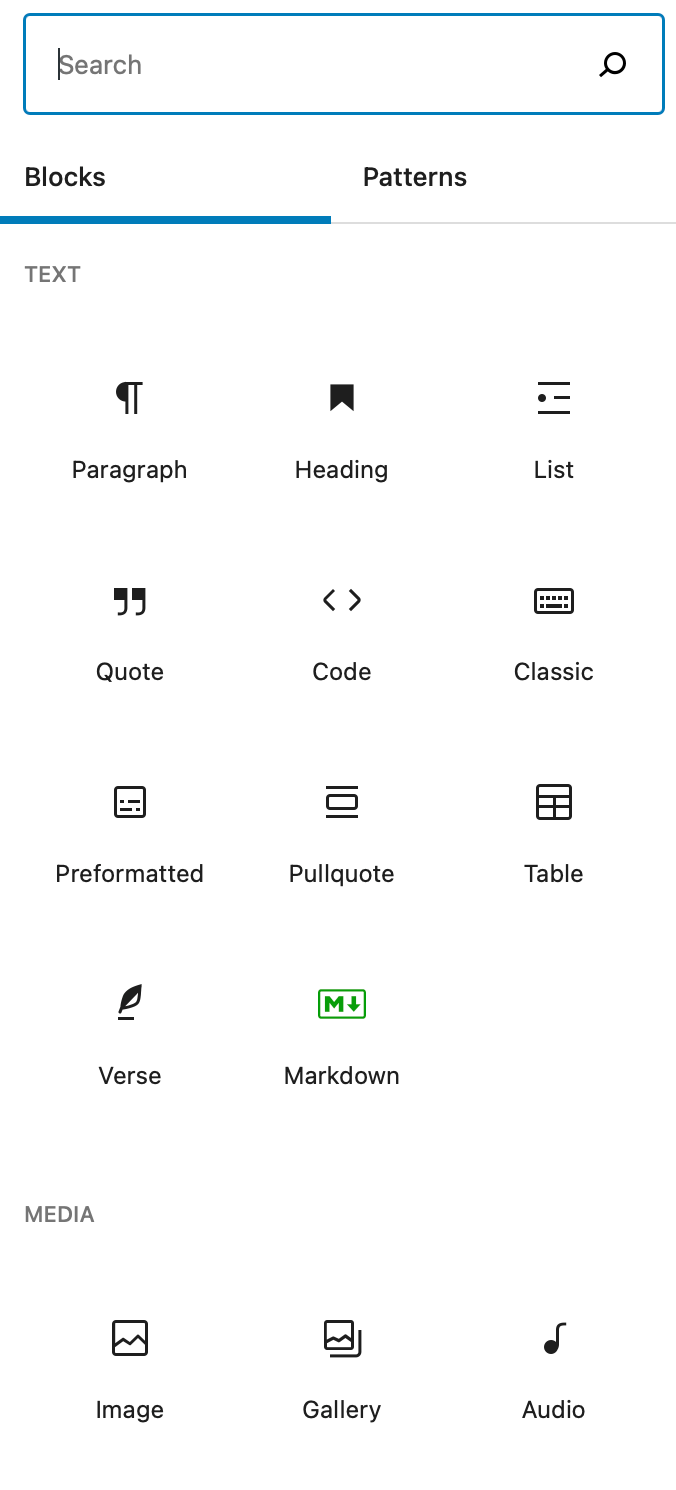
You've likely seen the block-based editing interface that's become popular in WordPress, Medium, Notion, and many other web tools. These editors let users insert paragraphs, images, calendars, Kanban boards—anything they need—as discrete 'blocks.' But each platform builds its own proprietary block system, so a block developed for one editor doesn't work in another. This means developers must re-implement the same blocks over and over, and users are stuck with whatever limited blocks their editor provides. The Block Protocol changes that. It's an open, free, non-proprietary standard that lets any block work in any editor that follows the protocol. This guide will walk you through making your web editor Block Protocol–compatible, so your users can enjoy a huge library of interchangeable blocks without you having to code each one from scratch.
What You Need
- A web editor already built with HTML, CSS, and JavaScript (or a framework like React, Vue, or Svelte)
- Basic knowledge of the postMessage API and handling iframes
- Access to the Block Protocol specification—early draft is available
- A development environment (e.g., a local server) to test embedding
- Optional: Sample open-source blocks from the Block Protocol repository to experiment with
Step-by-Step Guide
Step 1: Understand the Block Protocol Core Concepts
The Block Protocol defines a communication contract between an embedding application (your editor) and a block. Blocks are rendered inside sandboxed iframes and communicate via window.postMessage. The protocol standardizes messages for initialization, data updates, user interactions, and error handling. Familiarize yourself with the message types: block.initialise, block.updateData, block.userInteraction, and block.error. This understanding is crucial before writing any code.
Step 2: Set Up a Container for Blocks in Your Editor
In your editor, identify where users will insert blocks (e.g., a content area). For each block, create an iframe element. Set the src attribute to the block's URL (provided by the user or fetched from a block registry). Add an event listener to the iframe's contentWindow for message events. This will be the communication channel. Example:
const iframe = document.createElement('iframe');
iframe.src = 'https://block.example.com/calendar';
iframe.style.border = 'none';
iframe.addEventListener('load', () => {
  // Ready to initialise
});
// Listen for messages
window.addEventListener('message', handleBlockMessage);
Step 3: Implement the Initialisation Handshake
When the iframe loads, the block expects an initialisation message. You must send a block.initialise message with a unique blockId and any initial data (e.g., text content for a paragraph block). Use iframe.contentWindow.postMessage. The message format should follow the spec:
{
  "type": "block.initialise",
  "data": {
    "blockId": "block-123",
    "properties": {
      "content": "Hello world",
      "level": 1
    }
  }
}
Define how your editor generates unique block IDs and stores block data per user session.

Step 4: Handle Data Updates from the Block
Blocks can change their internal state (e.g., user types in a text block). When that happens, the block sends a block.updateData message to your editor. In your message handler, extract the new data and update your editor's model. Also store the data if you want to persist it. Example handler:
function handleBlockMessage(event) {
  const msg = event.data;
  if (msg.type === 'block.updateData') {
    const { blockId, properties } = msg.data;
    // Update your editor's state for this block
    updateBlockState(blockId, properties);
  }
}
Step 5: Allow Users to Insert and Remove Blocks
Add a user interface element (e.g., a '+' button or a slash command /) that lets users choose a block type. Present a list or searchable grid of available blocks. When a user selects a block, instantiate a new iframe with that block's URL and append it to the editor's content area. For removal, listen for user actions and destroy the iframe (remove the event listener and DOM element).
Step 6: Implement Block Data Persistence
When the page reloads or the user saves, you need to serialize all block data and store it (e.g., in a database or local storage). On load, re-create each block's iframe, send the initialisation message with the saved data. Ensure you handle the case where a block's URL may have changed or the block is unavailable.
Tips for a Smooth Implementation
- Start simple: First, support only one or two block types (e.g., paragraph and image) to verify your communication logic works.
- Use the existing open-source library: The Block Protocol community is building many blocks. Instead of creating your own, reuse them to enrich your editor immediately.
- Test across different domains: Since blocks can be hosted anywhere, ensure CORS and sandbox attributes are set correctly.
- Contribute back: The protocol is free and open—share your feedback, report bugs, or submit improvements to the specification.
- Consider performance: Each iframe adds overhead. Limit the number of visible blocks and lazy-load those offscreen.
- Think about accessibility: Ensure your block iframes respect focus, keyboard navigation, and screen readers.
Related Articles
- The Eternal Dungeon: A How-To Guide for Keeping Roguelikes Alive Through Community Passion
- How Devil May Cry Season 2 Fixes the Series' Biggest Mistake
- Study Reveals City Birds Favor Men Over Women — Scientists Baffled by the Behavior
- Apple's June Quarter Guidance: Revenue Growth and Memory Shortage Insights
- Unveiling the Top Terminal Annoyances: Insights from 1,600 Users
- Unlock Swift Development Across Modern IDEs: A Step-by-Step Setup Guide
- Tackling Air Pollution and Heat: Tailored Green Solutions for Cities in Nepal, Ethiopia, and Malawi
- Live Journalism and Nonprofit Models Lead Journalism's Survival Blueprint