How to Debloat Google TV and Restore Snappy Performance
Introduction
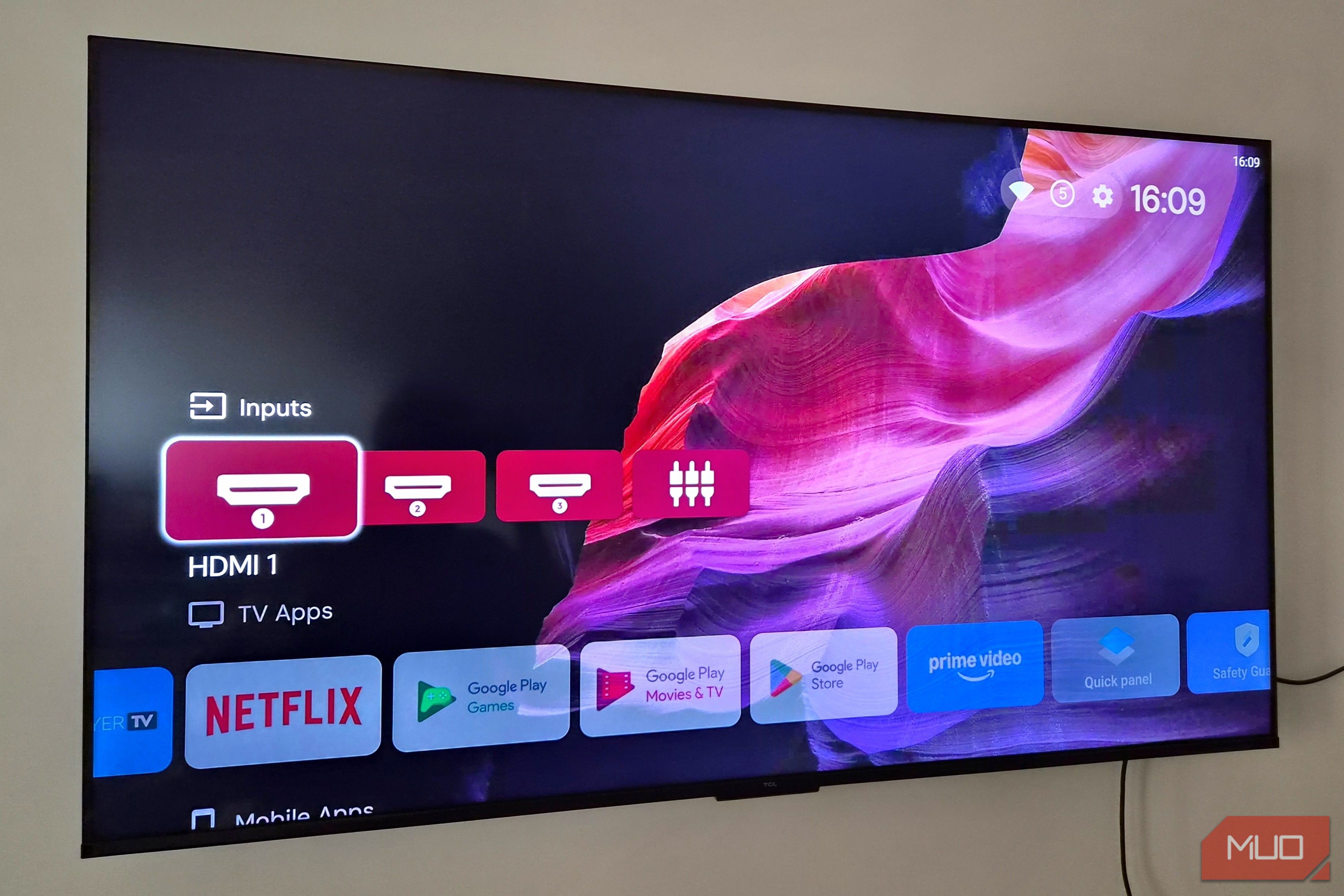
Google TV is a powerful streaming platform, but over time it can become sluggish and bloated with pre-installed apps, ads, and background processes. If you've noticed your device is no longer as fast as when you first bought it, you're not alone. This guide will show you how to remove unnecessary bloat and optimize your Google TV for smoother navigation and faster app launches—without rooting or voiding your warranty.
What You Need
- A Google TV device (Chromecast with Google TV, Sony Bravia Android TV, etc.)
- The remote control that came with your device
- A stable Wi-Fi connection
- Optional: A computer or phone to enable Developer Options (if you want to disable animations)
- Optional: The ADB AppControl or similar tool (for advanced users)
Step 1: Identify the Bloat
First, take a look at the apps and services that came pre-installed on your Google TV. Many of these, like streaming services you don't use or manufacturer bloatware, can be disabled or uninstalled. Go to Settings > Apps > See all apps. Scroll through the list and note any apps you rarely or never use. Common candidates include YouTube Music, Google Play Movies, YouTube TV, and third-party apps from your TV manufacturer.
Step 2: Disable or Uninstall Bloatware
For each app you want to remove, select it and choose Disable (if uninstall is not available) or Uninstall if the option exists. Disabling an app prevents it from running in the background, taking up memory, and showing up in your app launcher. Be careful not to disable system-critical apps like Google Play Services, Settings, or the launcher itself.
Step 3: Clear Cache for System Apps
Even after disabling apps, leftover cache files can slow things down. Go to Settings > Apps > System apps and clear the cache for apps like Google TV, Android TV Home, and any streaming apps you use. To clear cache: select the app, choose Clear cache (not Clear data, as that could reset your settings).
Step 4: Disable Animations (Developer Options)
Animations are visually pleasing but can make your interface feel laggy. Disabling them gives a snappier experience. To enable Developer Options, go to Settings > About > Build and click the remote's OK button 7 times. Then go back to Settings > System > Developer options and set the following:
- Window animation scale: Off or 0.5x
- Transition animation scale: Off or 0.5x
- Animator duration scale: Off or 0.5x
Step 5: Opt Out of Personalized Ads
Google TV's home screen is filled with ads and recommendations that use system resources. To reduce this, go to Settings > Privacy > Ads and enable Opt out of Ads Personalization. This doesn't remove all ads but reduces the data-collecting processes running in the background.
Step 6: Reduce Home Screen Content
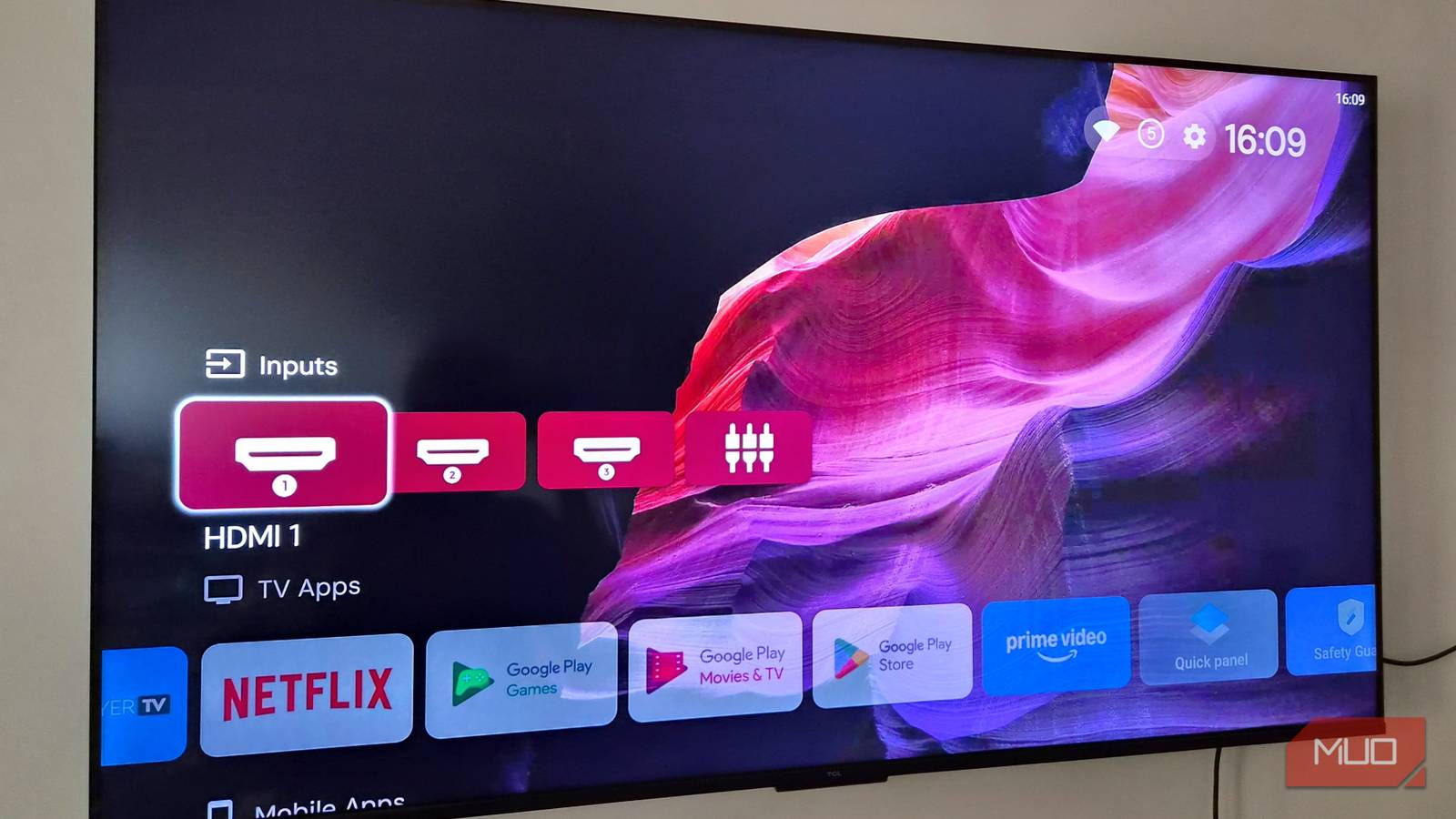
Customize your home screen to show only the apps you want. Press the Home button, scroll to the far right, and select Customize row or Manage apps. Remove app rows you don't use (like Google Play Movies, YouTube TV, or sports scores). The less content the launcher has to load, the faster it will feel.
Step 7: Restart Your Device
After making all these changes, restart your Google TV to apply everything. Hold down the power button on your remote and select Restart, or go to Settings > System > Restart. You should notice a noticeable improvement in navigation speed and app launching.
Advanced: Use ADB to Remove Deeply Embedded Apps (Optional)
If you're comfortable with command-line tools, you can use ADB (Android Debug Bridge) to uninstall apps that can't be removed through the normal interface. This requires enabling Developer Options and USB debugging. Then on your computer, run commands like adb shell pm uninstall -k --user 0 com.example.bloatware. This is powerful but risky—removing the wrong app could break functionality.
Conclusion and Tips
- Don't go overboard: Stick to disabling apps you genuinely don't use. Disabling critical services like Google Play Services can cause crashes.
- Keep a backup: Note down which apps you disable so you can re-enable them if needed.
- Update your device: Sometimes performance issues are fixed by firmware updates. Check for system updates in Settings > System > System update.
- Factory reset as a last resort: If your Google TV is still slow after debloating, a factory reset can give you a fresh start. Just remember to reapply settings.
- Expect gradual improvement: The device may take a few reboots to fully settle into its new lean state.
With these steps, you can reclaim the snappy interface that Google TV originally offered. No need to buy a new streaming box—just a little cleanup can go a long way.
Related Articles
- Unlocking Community Knowledge: Facebook’s Enhanced Search with Hybrid Retrieval and AI Evaluation
- California’s Social Media Ban: Why Age Gates Are No Silver Bullet for Online Safety
- Why Are Users Fleeing Meta’s Platforms? The Decline of Facebook and Instagram Explained
- Microsoft Defends Windows 11's Low Latency Profile Amid Community Concerns – Here's What You Need to Know
- How to Turn Your OpenSearch Cluster into an AI Data Layer
- Civility Blueprint from 1920s Vienna: How a Lost Culture of Collaboration Could Heal Today's Web
- Amazon Quietly Retires Fire TV Brand: Inside the Three Major Changes
- Google Urges Pixel Users to Activate Overlooked Emergency Feature Immediately