How to Set Up an Affordable Local AI Workstation with AMD's Ryzen AI Halo Mini PC
Introduction
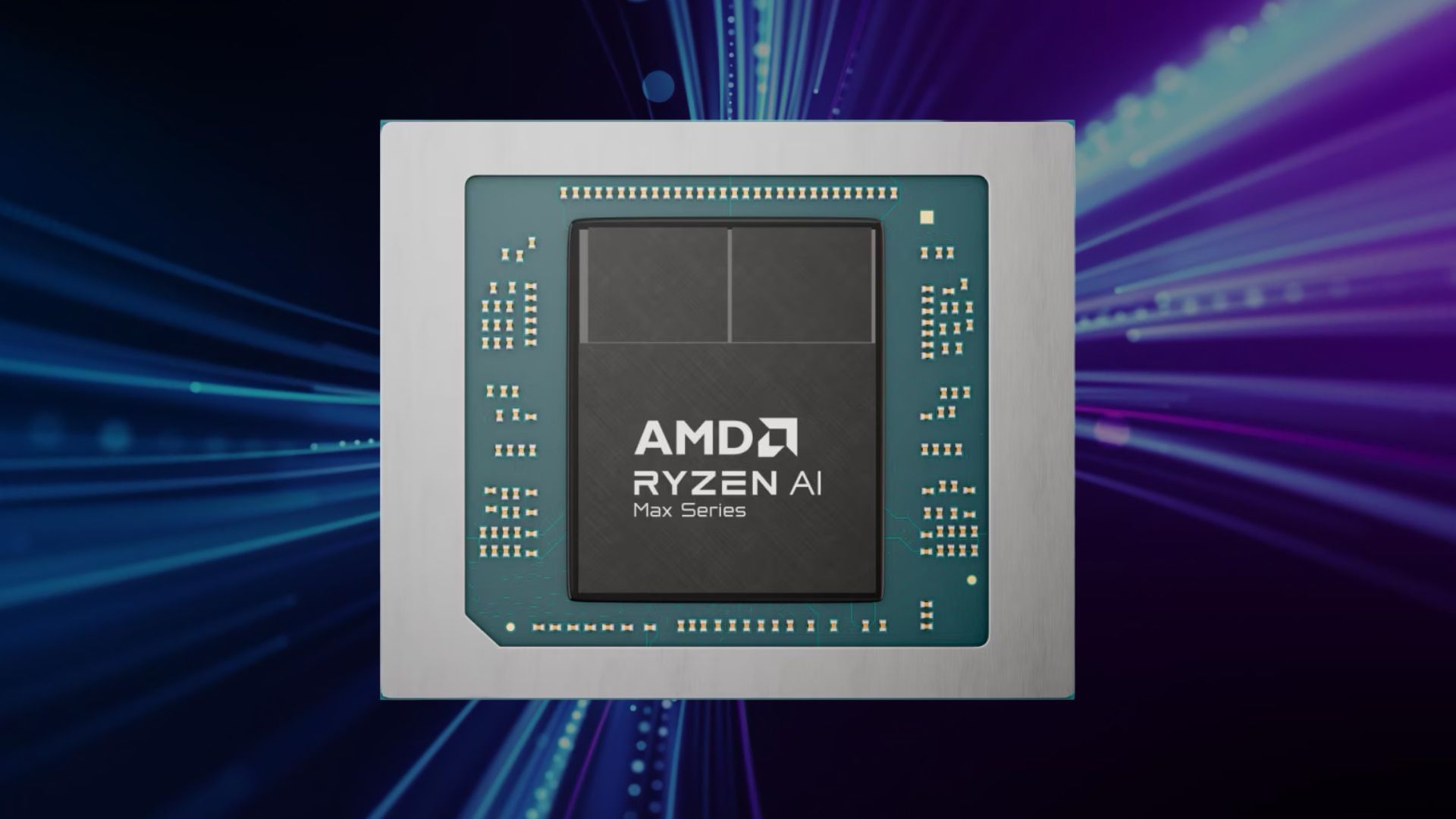
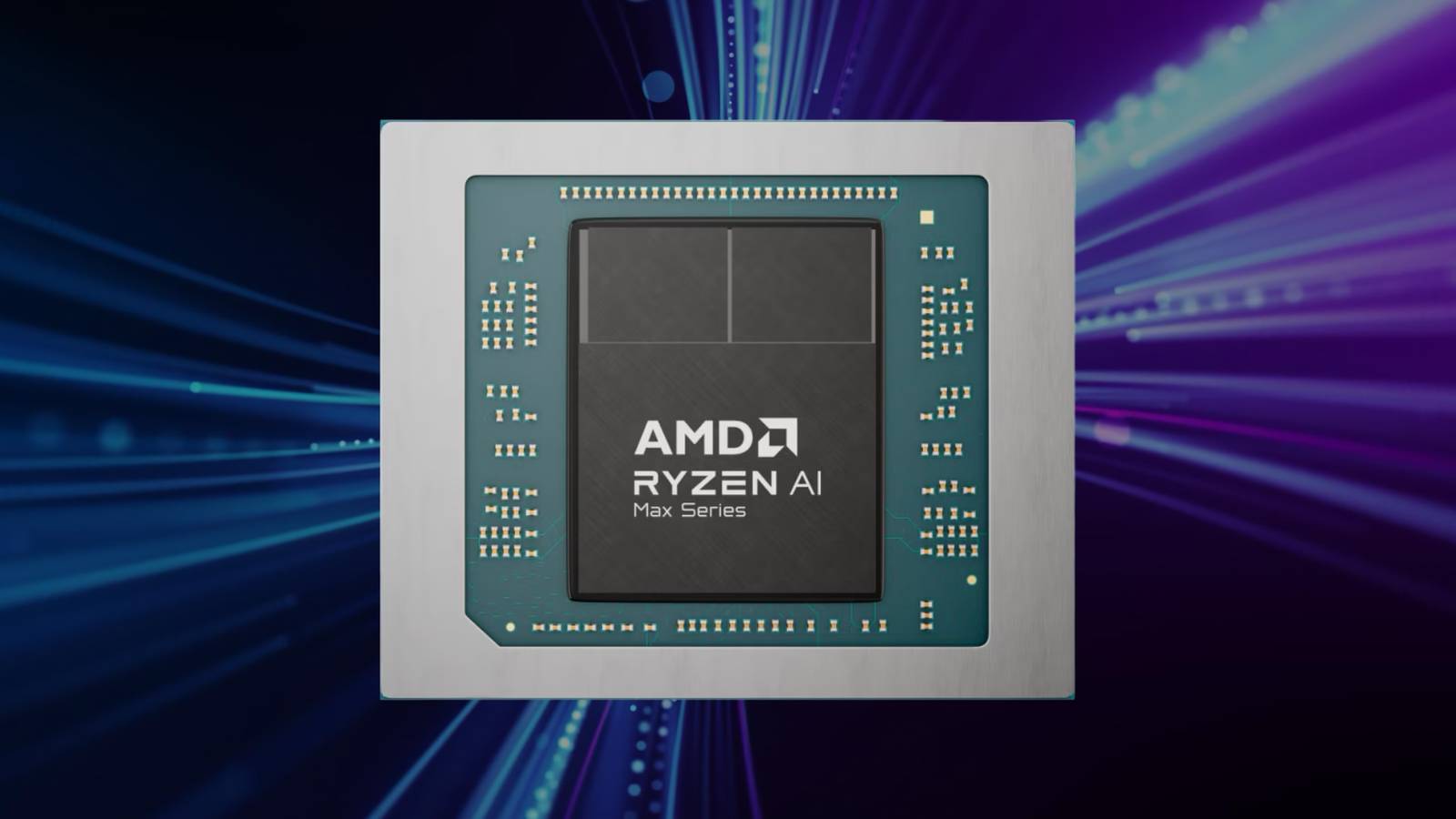
If you've been dreaming of an AI workstation that doesn't drain your wallet with expensive cloud subscriptions or Nvidia's premium pricing, AMD's Ryzen AI Halo mini PC might be your perfect match. Priced at $3,999, this compact powerhouse is optimized for AI development and promises significant savings—both upfront and over time—by letting you run models locally. No need for specialized ARM chips or the $4,699 Nvidia DGX Spark. This guide walks you through setting up your own local AI dev environment with the Ryzen AI Halo, covering everything from unboxing to deploying your first model.
What You Need
Before you start, gather the following:
- AMD Ryzen AI Halo mini PC (available from AMD or authorized resellers, ~$3,999)
- Monitor (preferably 4K for detailed AI visualizations)
- Keyboard and mouse (any USB or wireless will work)
- High-speed internet for initial software downloads (Wi-Fi 6 or Ethernet)
- USB-C or DisplayPort cable (depending on your monitor)
- Optional: External SSD or NAS for large datasets
- Software: Latest Windows 11 Pro or a Linux distribution (Ubuntu 22.04 LTS recommended)
Step 1: Choose and Purchase Your AMD Ryzen AI Halo Mini PC
Start by selecting the right configuration. The Ryzen AI Halo comes with integrated AI accelerators and a powerful Ryzen CPU. Verify compatibility with your intended AI frameworks (PyTorch, TensorFlow, ONNX). Purchase directly from AMD's website or a reputable retailer. Pro tip: Look for bundle deals that include a warranty extension.
Step 2: Unbox and Physically Set Up Your Workstation
Carefully unbox the mini PC. Connect the monitor via the HDMI or DisplayPort (check which ports are available). Attach keyboard and mouse. Plug in the power adapter and press the power button. The system will boot into BIOS for the first time. Follow on-screen prompts to set the date/time and boot order.
Step 3: Install the Operating System and Drivers
If your unit doesn't come with an OS, install Windows 11 Pro or Ubuntu 22.04. For AI work, Linux is often preferred for better library support. After OS installation, download and install the latest AMD drivers from AMD's support page. Pay special attention to the ROCm driver stack for GPU compute if you plan to run deep learning workloads. Reboot the system.
Step 4: Install AI Development Frameworks and Tools
Open a terminal (or command prompt) and install the following:
- Python 3.10+ (via apt or official installer)
- PyTorch with ROCm support:
pip install torch torchvision torchaudio --index-url https://download.pytorch.org/whl/rocm5.6 - TensorFlow with AMD support:
pip install tensorflow-rocm - ONNX Runtime:
pip install onnxruntime - CUDA is not required—AMD's ROCm is the equivalent. Verify installation with
rocm-smi.
Test by running a small model: python -c "import torch; print(torch.cuda.is_available())" should return True.
Step 5: Configure Local Inference and Training
Now you can migrate your AI workflows from the cloud. For inference, use the AMD Ryzen AI Halo's built-in NPU (Neural Processing Unit) for low-power tasks. For training, leverage the integrated GPU. Create a project folder and move your Python scripts. Set environment variables to use local devices: export HIP_VISIBLE_DEVICES=0. Run your first training script and monitor performance with rocm-smi to see GPU utilization.
Step 6: Optimize for Cost and Performance
Avoid expensive cloud subscriptions by running everything locally. Use the following tips:
- Schedule batch jobs during off-peak hours to keep the mini PC cool.
- Use Docker with ROCm containers for reproducible environments.
- Set up a local MLflow server to track experiments without cloud storage fees.
- Compare benchmarks with Nvidia DGX Spark—you'll find comparable performance for many models at a lower price ($3,999 vs $4,699 plus cloud costs).
Tips
- Avoid ARM chip lock-in: Unlike the DGX Spark, the Ryzen AI Halo uses standard x86 architecture, ensuring broader software compatibility.
- Save on subscriptions: By keeping your AI workloads local, you eliminate monthly cloud GPU fees that can easily exceed $500/month.
- Scale later: You can cluster multiple Ryzen AI Halos if you need more power—no need for a datacenter.
- Use AMD's official documentation: Visit ROCm docs for advanced tuning.
Final tip: The Ryzen AI Halo is not just a cheaper alternative; it's a strategic investment for AI developers who want full control over their hardware and data. Start small, benchmark your workloads, and enjoy the freedom from expensive cloud AI.
Related Articles
- Preparing Your Rust CUDA Projects for the PTX Baseline Increase in Rust 1.97
- Everything You Need to Know About Apple's New AI Grammar Checker in iOS 27
- Breaking: Massive Discounts on Samsung Galaxy Tab S11 Ultra, Galaxy S26 Ultra, Galaxy Book6, and Amazon Echo Devices
- AI Chip Stocks Push Markets Higher Amid Oil Price Jitters - Midday Market Update, May 11
- 10 Surprising Ways Limiting Background Processes on Android Boosts Performance and Battery
- How to Make Sense of Apple's Mac Mini Storage and Price Shifts: A Buyer's Guide
- Failed Resurrection: 20-Year-Old Desktop Sparks and Dies After Decade of Silence
- How to Prepare for the Looming Memory Price Hike Driven by Nvidia’s Rubin AI Platform