10 Things You Need to Know About Chrome's Gemini Skills (And Why I'm Not Switching Back)
When Google rolls out a new AI feature in Chrome, I usually shrug it off. But the announcement of Gemini Skills—a tool that lets you create shortcuts for frequently used prompts—caught my attention. It's clever, useful, and even made me a little envious. Yet, after digging into what it offers, I realized it's not enough to lure me away from my current browser. Here are 10 key insights about this feature, from its standout perks to the reasons it falls short.
1. What Exactly Are Gemini Skills?
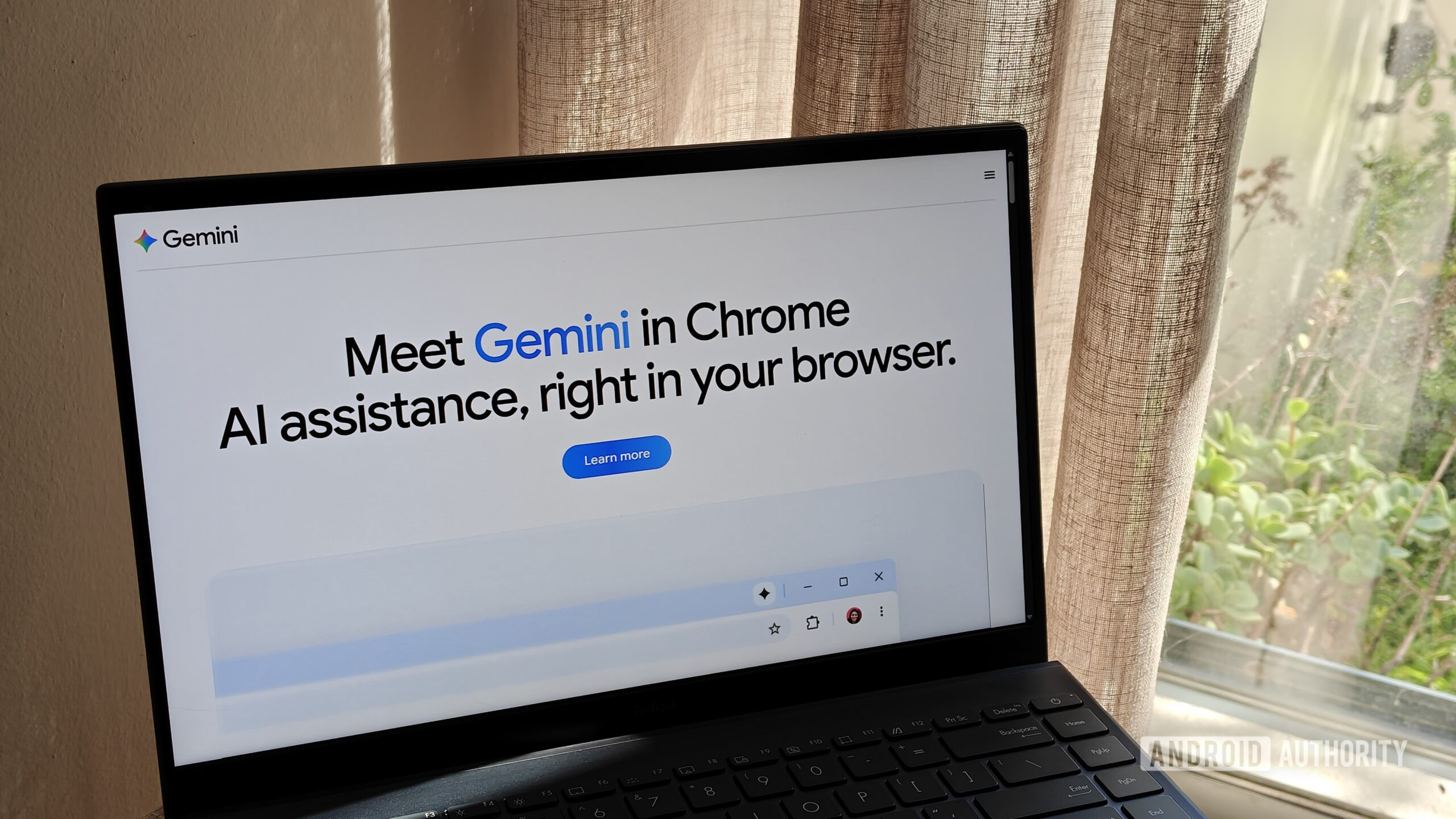
Gemini Skills is a Chrome-only feature that allows you to set up custom shortcuts for AI prompts you use often. Think of it as a macro for your queries: instead of typing a long instruction each time, you save it once and trigger it with a simple keyword or phrase. For example, you could create a shortcut to summarize articles, rewrite emails, or generate to-do lists. It's designed to save time and reduce repetitive typing, especially for power users who interact with Gemini frequently. While this sounds convenient, it's a relatively narrow addition to the browser—useful, but not revolutionary.
2. How Skills Work: A Quick Walkthrough
Setting up a Skill is straightforward. You open Chrome's settings, navigate to the Gemini section, and click “Add new skill.” Then you type the prompt you want to save and assign a label (e.g., “summarize” or “translate”). Later, you can activate the Skill by typing a slash followed by the label into the address bar or a text field. The AI then executes the saved prompt. However, this only works within Chrome and requires you to be signed into your Google account. It's a neat integration, but the dependency on Google's ecosystem might be a dealbreaker for privacy-conscious users or those who use multiple browsers.
3. The Convenience Factor: Why It's Handy
The main appeal of Skills is speed. Instead of writing “Explain this in simple terms” every time, you just type /explain. For repetitive tasks—like formatting data, drafting replies, or searching for specific info—this can shave off seconds per use. Over a day, those seconds add up. The feature also remembers your custom prompts across devices if you use Chrome sync, so you don't have to recreate them on every computer. But here's the catch: you have to be a regular Gemini user to benefit. Casual users may find the setup effort outweighs the payoff, especially when other tools offer similar functionality without the commitment.
4. How It Compares to Other Browser AI Features
Google isn't the only player in the browser AI game. Microsoft Edge has Copilot with similar shortcut capabilities, and Brave's Leo offers a built-in AI assistant. What sets Gemini Skills apart is its tight integration with Google's ecosystem—Gmail, Docs, and Drive. If you live in Google Workspace, Skills can pull context from your emails or documents. Edge's Copilot also integrates with Microsoft 365, but the key difference is that Skills focuses on user-defined prompts rather than pre-built commands. In practice, both are iterating toward the same goal: making AI feel native to browsing. However, none of them are game-changers yet.
5. The Integration with Google Ecosystem
For heavy Google users, this is a double-edged sword. On one hand, Skills can interact with your Gmail inbox, Calendar events, and Drive files if you give it permissions. You could create a skill that says “Find the latest email from [client] and summarize it.” On the other hand, this requires deep access to your personal data, which raises privacy flags. Google promises encryption and data handling per their AI policies, but trust is subjective. If you're already comfortable with Google's grip on your data, this is a plus. If not, it's a reason to look elsewhere.
6. Privacy and Data Concerns
Every AI feature comes with a privacy trade-off. Gemini Skills processes your prompts in the cloud, meaning your queries and the content you interact with are sent to Google's servers. While the company states that it uses this data to improve models, you can opt out via your Google Account settings. Still, the fact that you're training the AI on your private emails or documents might make you uneasy. Compared to local-only AI assistants (like Apple's on-device processing), Skills feels invasive. For professionals handling sensitive information, this is a significant barrier to adoption.
7. The Learning Curve and Limitations
Skills are not instantly intuitive. You need to invest time in setting them up, testing them, and remembering the labels you created. Moreover, the AI sometimes misinterprets the context, especially with complex prompts. For example, a skill meant to “summarize the meeting notes” might produce a generic summary if the email isn't properly parsed. There's also a limit on how many skills you can create (currently 25), and you can't chain them together. These limitations mean that while Skills are powerful in theory, in practice they require patience and tweaking—a luxury not every user has.
8. Why I Still Prefer My Current Browser
Despite the appeal, I'm not switching back to Chrome. My current browser (Firefox) offers a more customizable and privacy-respecting experience. It also has add-ons like Sidebery and uBlock Origin that boost productivity without sending data to a third party. Chrome's resource hunger—especially on older machines—is another factor. Skills may save a few seconds, but Firefox's speed and lightweight design save me minutes every day. Ultimately, the trade-off isn't worth it for me. I'd rather use a dedicated AI tool like ChatGPT sidebar than lock myself into Chrome's ecosystem.
9. Who Would Benefit Most from Skills?
If you're a Google power user who lives in Chrome and regularly uses Gemini for work, Skills is a no-brainer. Teachers, writers, and project managers who repeat similar tasks daily will find it genuinely useful. The feature also shines for students who need quick summaries or citations. However, for casual users—those who browse, shop, or watch videos—the payoff is minimal. You're better off using a simple bookmark or a text expander tool. In short, Skills is a niche productivity boost, not a universal browser upgrade.
10. The Future of AI in Browsers
Gemini Skills is a step toward making AI an invisible assistant. Google's vision is that you'll eventually type a shortcut and the browser handles everything—scheduling, emailing, researching. But we're not there yet. Skills feel like a beta feature: promising but unfinished. Competing browsers are likely to counter with their own versions, and the real winner will be the one that balances power with privacy. For now, I'll watch from the sidelines. Maybe in a year, Chrome will have a compelling reason for me to return. Until then, Skills isn't it.
In conclusion, Chrome's Gemini Skills are a clever addition that shows Google's ambition to embed AI into our daily browsing. They offer real convenience for dedicated fans of the ecosystem. But for anyone who values privacy, performance, or flexibility, the feature isn't a game-changer—it's just another tool in a crowded market. I'll stick with my current setup, but I'm keeping an eye on how this evolves.
Related Articles
- Why OpenAI's 131,000-GPU Network Breaks the Rules: A Q&A
- Python's 'Zen' Code: 19 Aphorisms Now Official Guidance for Developers
- Canvas Learning Platform Restored After Cyberattack Disrupts Global School Finals
- How to Use an Interrogatory LLM to Elicit Knowledge: A Step-by-Step Guide
- Kazakhstan's Ministry Renews Coursera Partnership to Advance Digital and AI Education for Students
- 6 Essential Techniques for ByteBuffer and Byte Array Conversion in Java
- Why Data Normalization Consistency is Critical for Machine Learning Production Performance
- 10 Key Insights into Reinforcement Learning Without Temporal Difference Learning